Run a tournament
Everything happens on the organizer console. To open it, tap 🏆 Events, then Manage next to your event.
Plans: Pro and up What each plan includes
-
Add players Pro and up
Under Add a player, type a Name and, if you like, an Email to track their record. Doubles events also ask for a Partner name. Tap Add to roster.
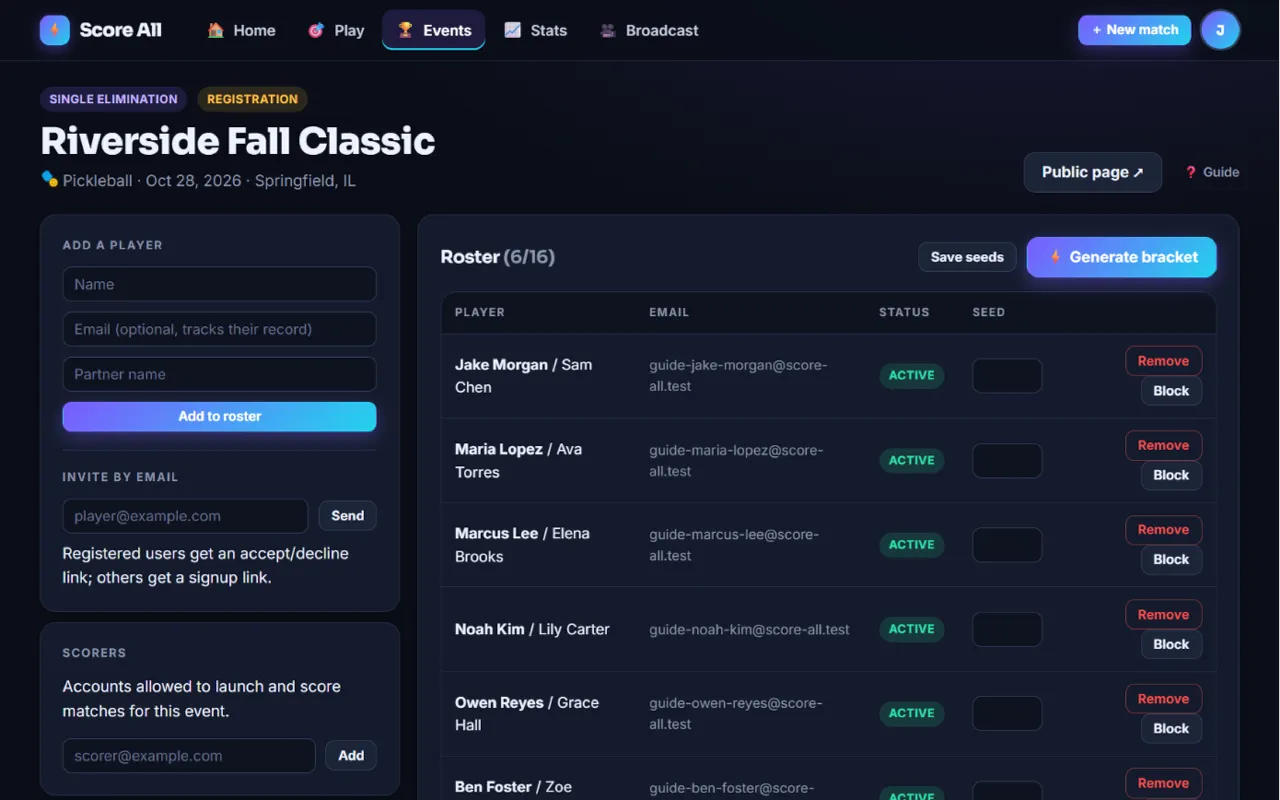
The organizer console with the roster 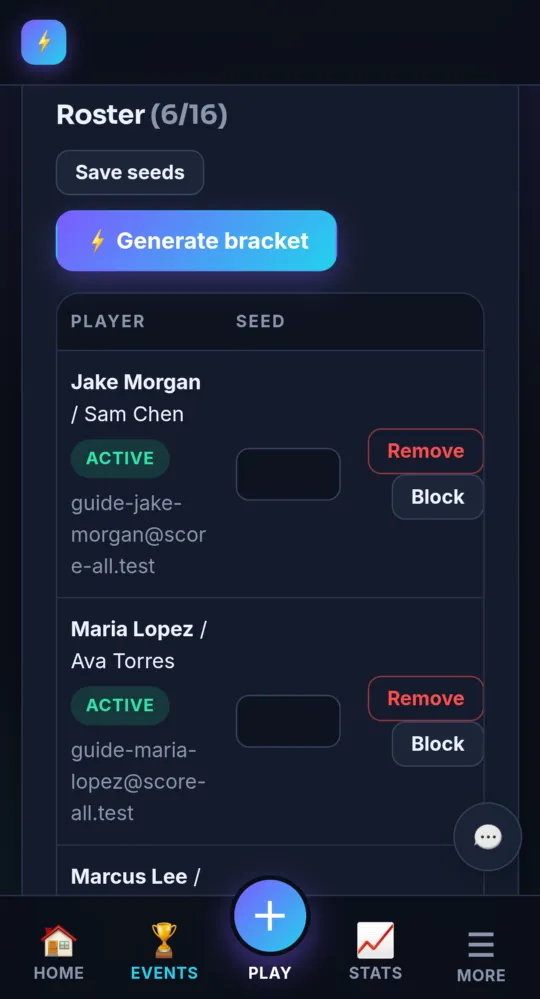
On a phone -
Or let players join Pro and up
Share the event link from the Share card. People open it and tap Join tournament themselves. See Find and join a tournament.
-
Invite by email Pro and up
Under Invite by email, type an address and tap Send. People with an account get an accept or decline link. Others get a link to sign up, and the invite waits for them under that email. Invites show as pending in the roster until they answer. Accepting closes when you generate the bracket.
-
Set seeds (optional) Pro and up
Type seed numbers in the roster and tap Save seeds. Seeded players are placed in seed order. With no seeds at all, the draw is random.
-
Remove or block someone Pro and up
Each roster row has Remove and Block. Block keeps that email out of this event. Unblock them any time from the Blocked card.
-
Generate the bracket Pro and up
When the roster is ready, tap ⚡ Generate bracket. This locks the roster and starts the event. Byes are placed for you, and anyone with a bye moves on at once.
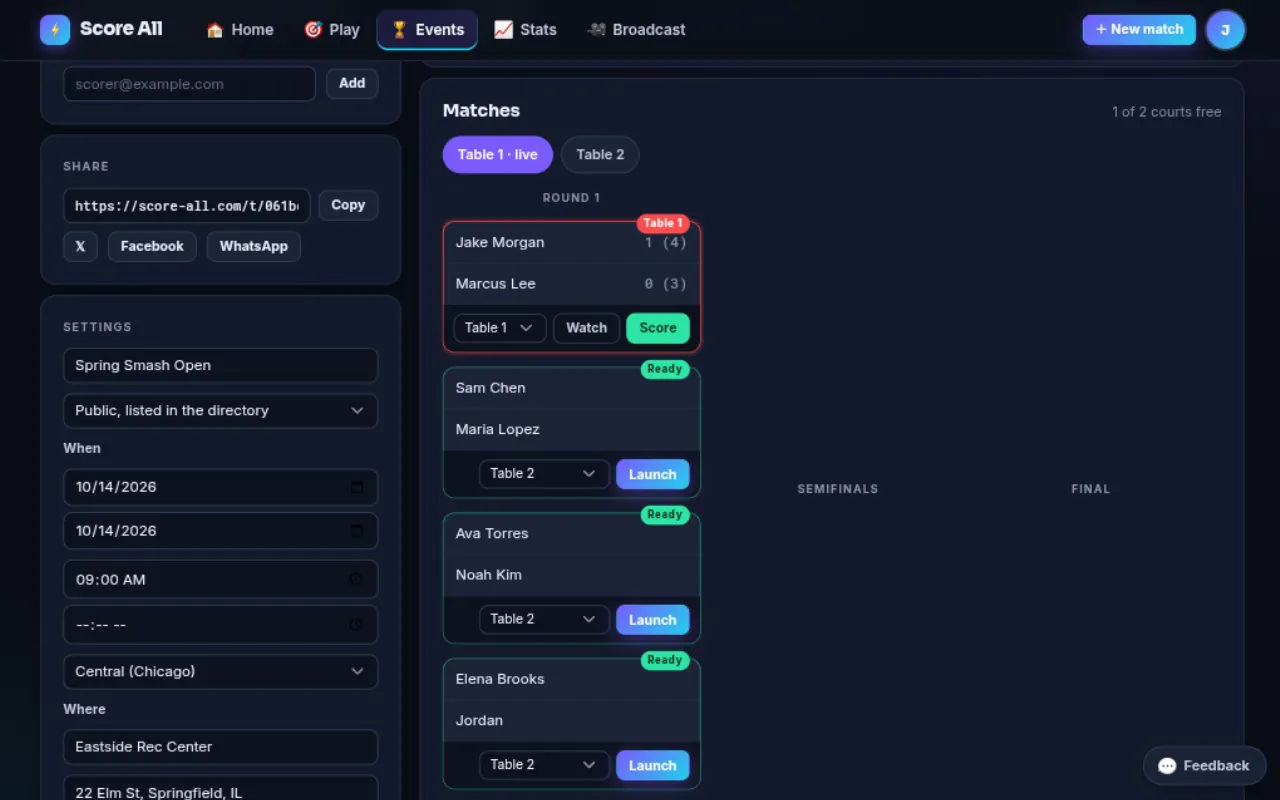
A generated bracket with matches ready to launch 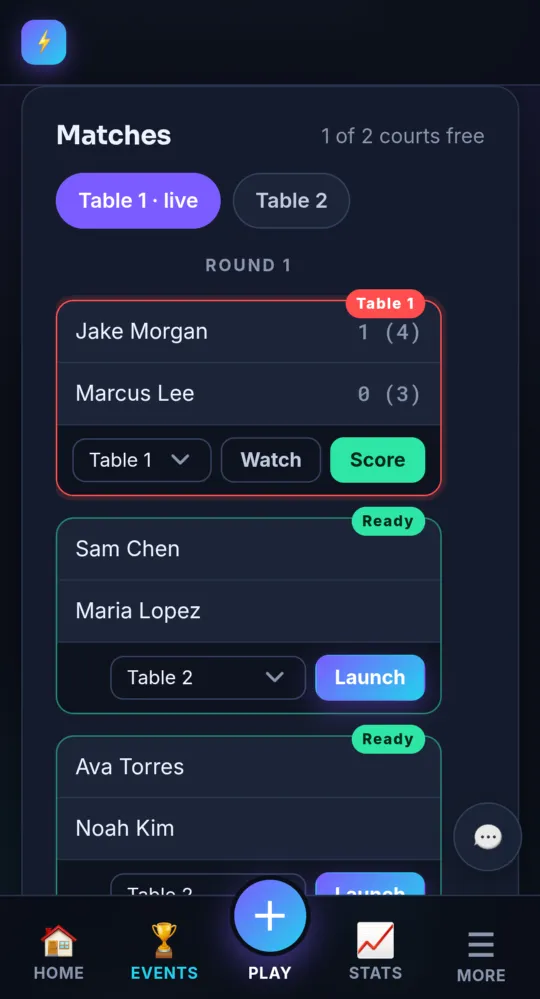
On a phone -
Add scorers Pro and up
Under Scorers, type the email of another Score All account and tap Add. They can launch and score matches for this event from their own phone.
-
Launch a match to a court Pro and up
Matches ready to play show a Ready tag. The list next to it already has the next free court picked; courts with a match on them say (in use). Change it if you like and tap Launch. The referee console opens for that match.
-
Move a match to another court Pro and up
On the console, a live match has a court list next to Watch and Score. Pick another court, or No court, and the match moves there. The bracket and its scoreboard show the new court.
-
Players hear “You’re up” Pro and up
When a match launches, both sides get a notification: “You’re up on Table 2!” with your court’s name. Players need notifications turned on; see Notifications and the phone app.
-
Score it and let the bracket move Pro and up
Score the match like any other. When it ends, the winner moves on by themselves. In double elimination the loser drops to the losers bracket, and round robin standings update. Tap Next match → to keep going.
-
Crown the champion Pro and up
When the last match ends, a banner names the winner. The public event page shows the whole bracket and every result.
-
Change the details Pro and up
The Settings card changes the name, who can find it, the dates, times, place, courts and description. Tap Save settings. A new date, time or place is emailed to every registered player and updates their calendars.
- Live matches show Watch and Score; finished ones show Recap.
- Each tournament match has its own scoreboard link, TV code and overlay address, like any match.
Something not working like this?
Tell us what happened, or what is missing. We read every message.