Score a game
Every game takes three steps: Sport & rules, Players, Launch. Then you score on the referee console, a big tap-to-score screen made for a phone.
Plans: Free Pro and up What each plan includes
-
Start a new match Free
Tap Play in the top bar, or + Play on a phone. + New match does the same. The page is called New match.
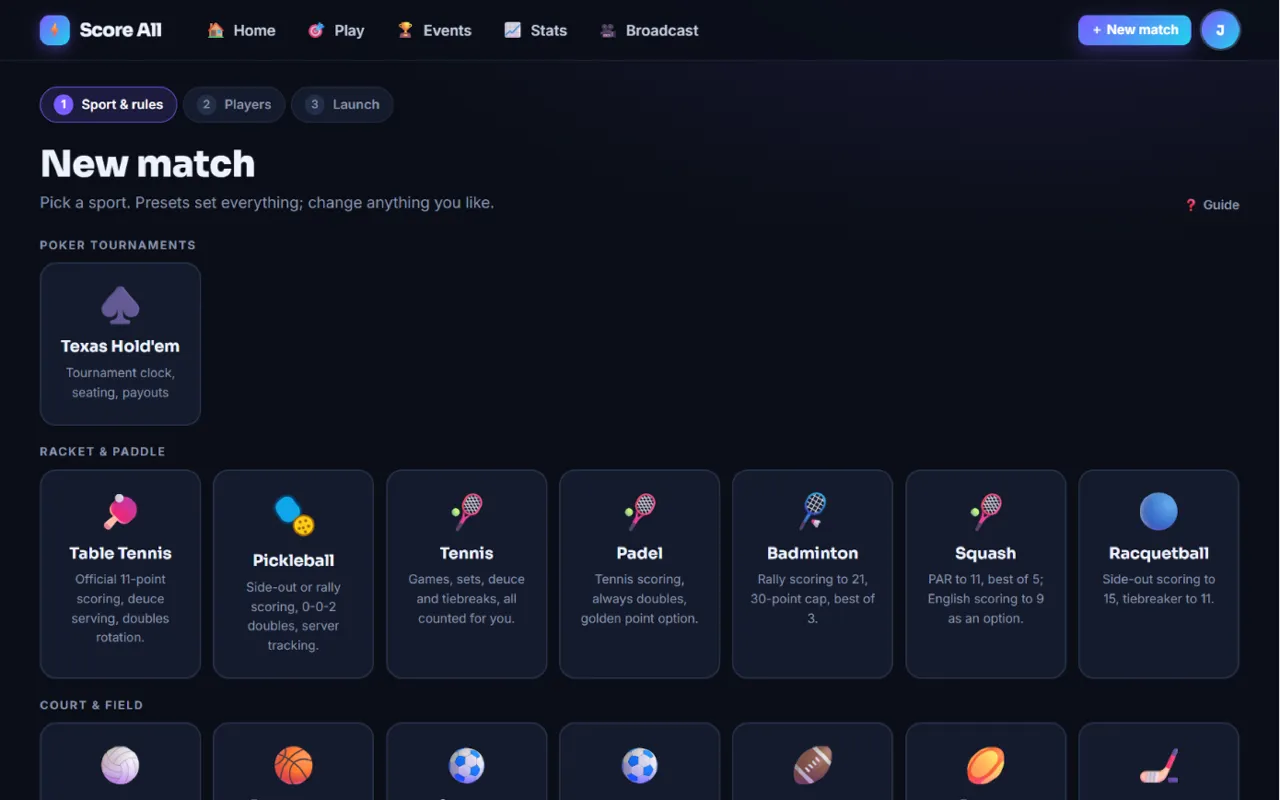
The New match page with sport tiles in groups 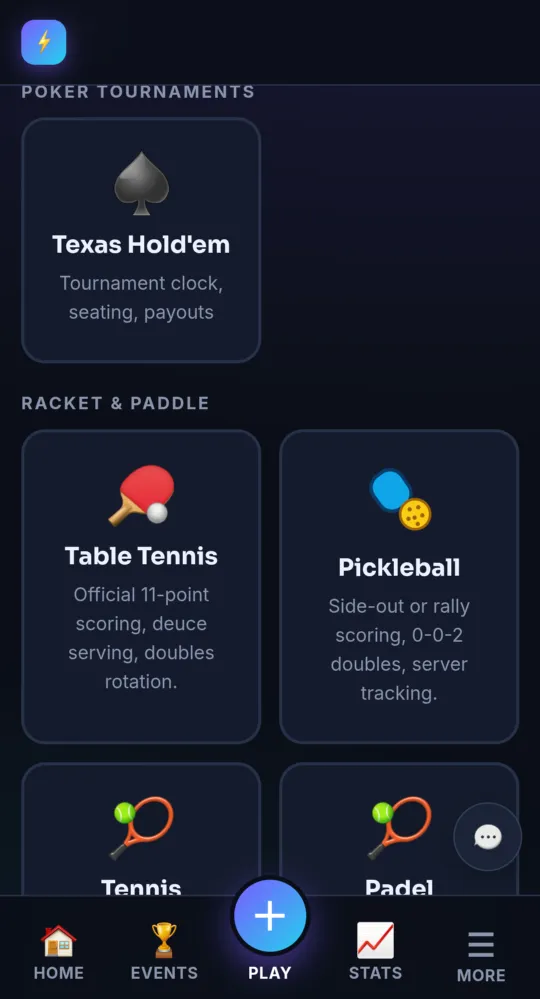
On a phone -
Pick a sport Free
Sports are in groups: Racket & paddle, Court & field, Lawn, yard & bar, and Card games. Tap a tile.
-
Pick a preset Free
A preset is a ready-made set of rules, like USA Pickleball doubles or Fast4 tennis. Tap one under Presets and every rule fills in.
-
Change any rule, including house rules Free
Below the presets is every rule for the sport. The House rules group holds the casual ways people play, like skunk, point caps and handicaps. Tap the i button next to a rule to see what it does.
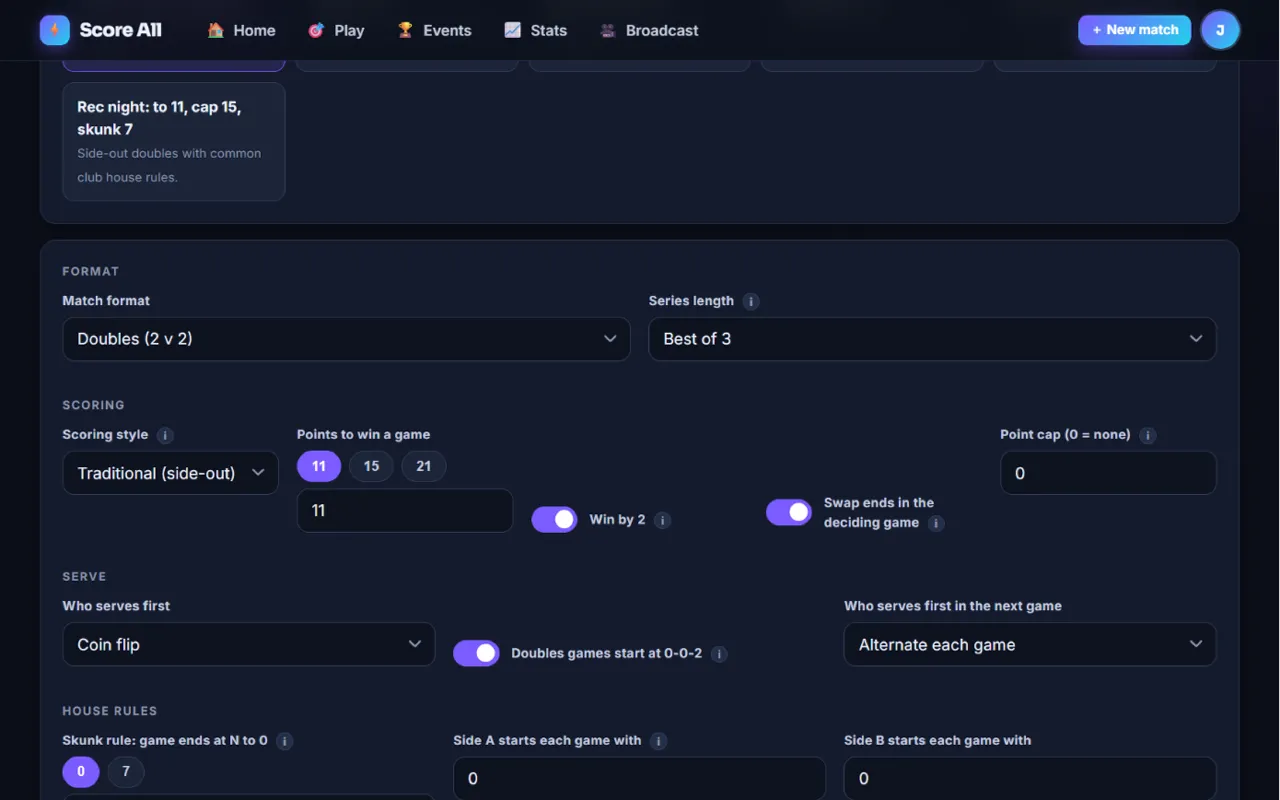
Presets and the rules for a sport, with the House rules group 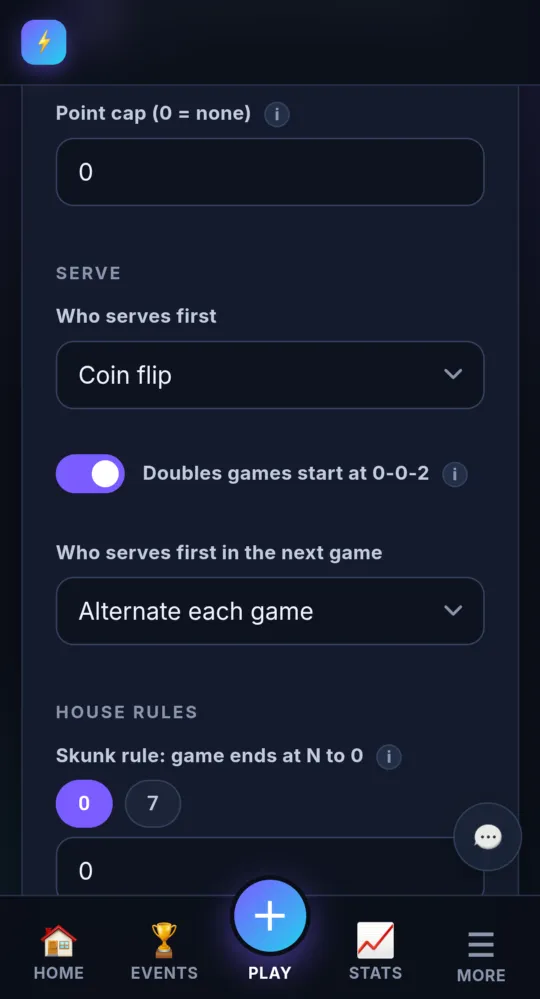
On a phone -
Save your own preset Pro and up
Set the rules the way your group plays, then tap 💾 Save current rules as preset and give it a name. Next time it shows at the top as ★ and your preset name. Settings lists your saved presets.
-
Go to the players step Free
Tap Next: who is playing →. The page is called Who is playing?
-
Add the players Free
Each spot has a type: Me, Name only (a quick guest), Name + email (keeps their record and rating), or Score All account (type their email and tap Find account). Players with an email or an account get the result by email.
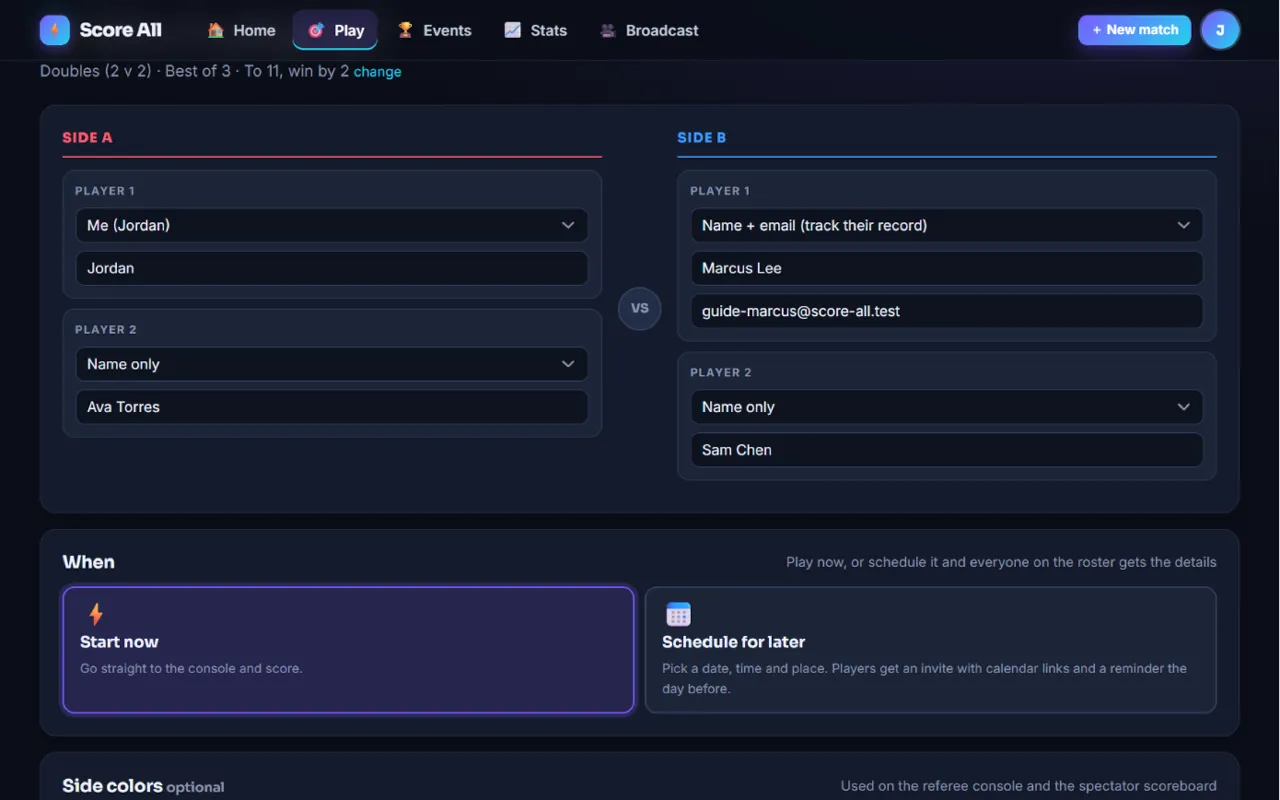
The Who is playing? step with player types and side colors 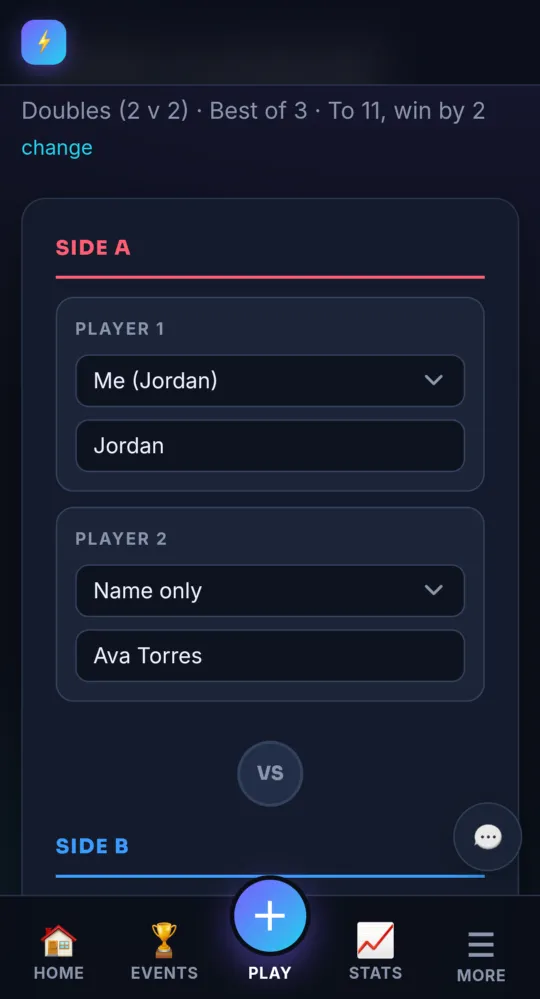
On a phone -
Pick side colors (optional) Free
Under Side colors, pick a color for each side, or tap ✎ for any color. The console and the scoreboard use them. Reset to default puts them back.
-
Start now Free
Under When, keep ⚡ Start now and tap Create match →. To play another day, see Schedule games.
-
The Match ready page Free
This page has tiles for the referee console, the pregame lobby, the spectator scoreboard, the big screen and the broadcast overlay, plus the scoreboard link and the TV code. Tap 🎮 Open the referee console.
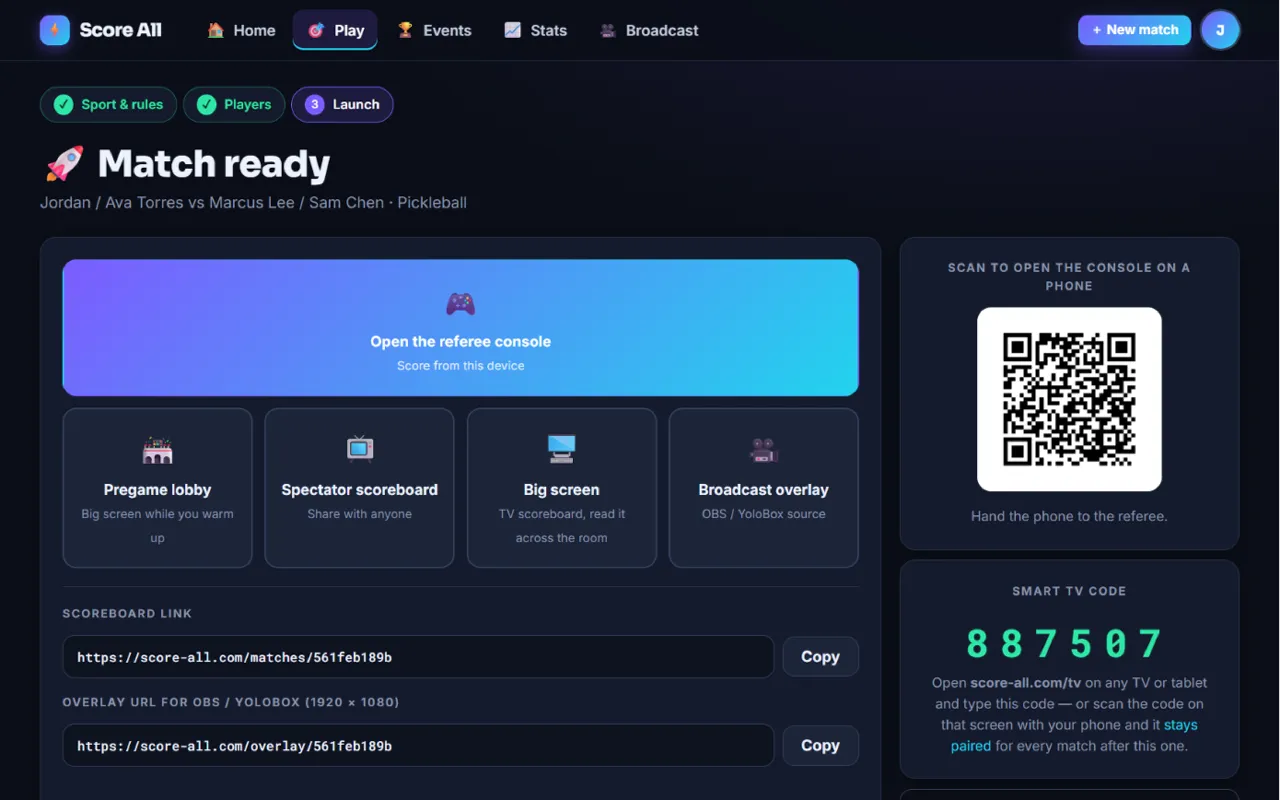
The Match ready page with its tiles, links and TV code 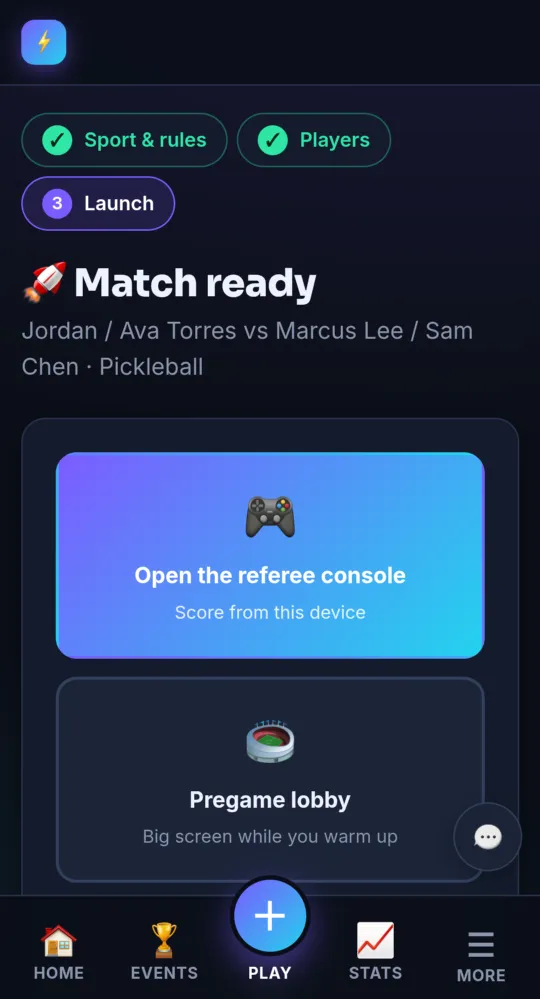
On a phone -
Tap to score Free
Racket sports and other rally games show two big halves. Tap the side that won the point. The serve, the games and the court positions update by themselves. Timed sports and baseball show buttons for each side instead, like +2 or Out, with a clock bar.
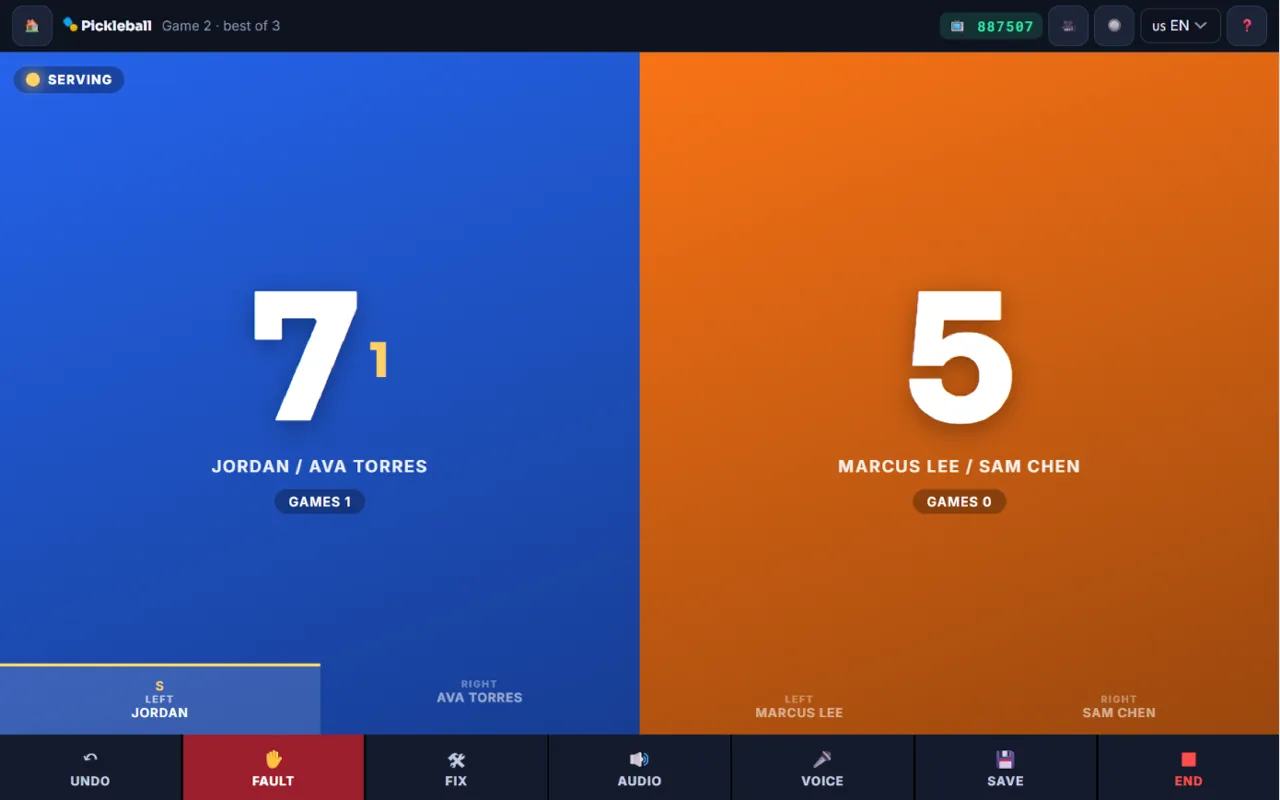
The referee console with two big tap zones 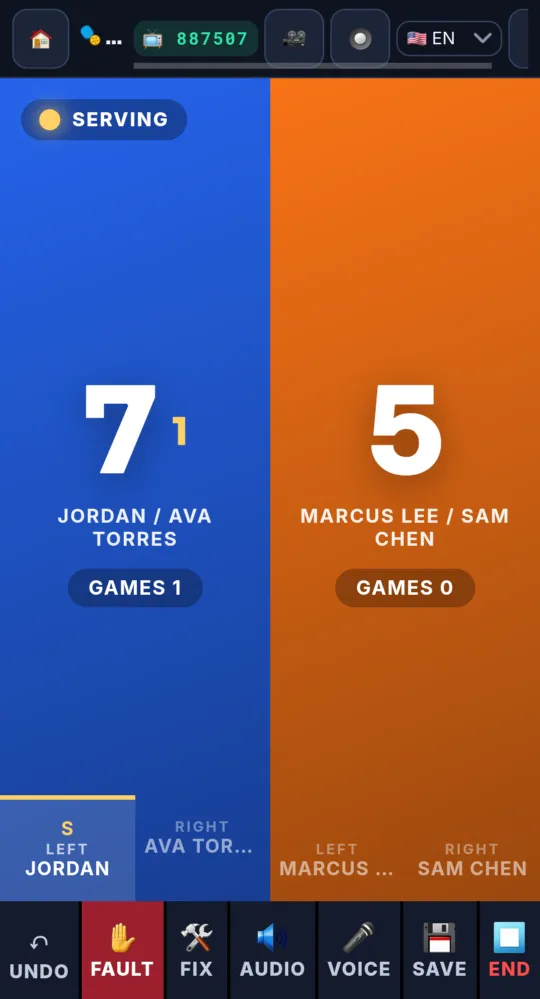
On a phone -
Undo and Fix Free
↶ Undo takes back the last tap, serve and all. 🛠 Fix lets you type in the score, games, server, clock and more when something got out of step. Tap Save to keep it.
-
End the match Free
Most matches end on their own when someone wins. To stop early, tap ⏹ End. The score at that moment becomes the final result. Everyone on the roster with an email gets the result.
-
Next time: Quick Play Free
Every sport you have played shows on your dashboard under Quick Play w/Last Settings. One tap skips straight to the players, with the same rules as last time.
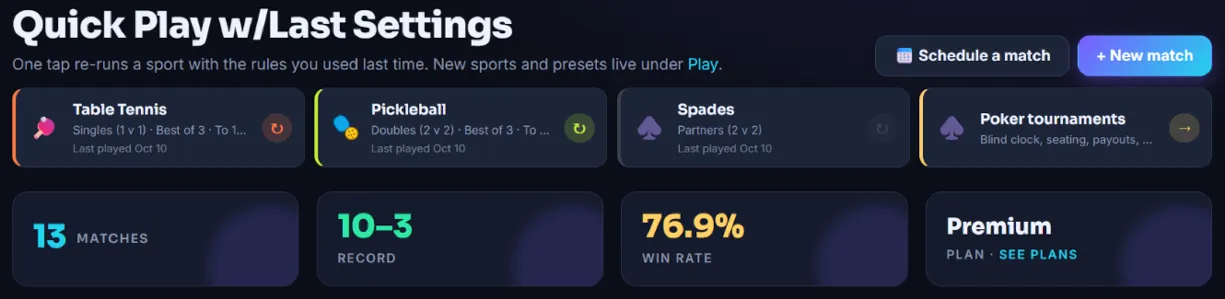
Quick Play w/Last Settings on the dashboard 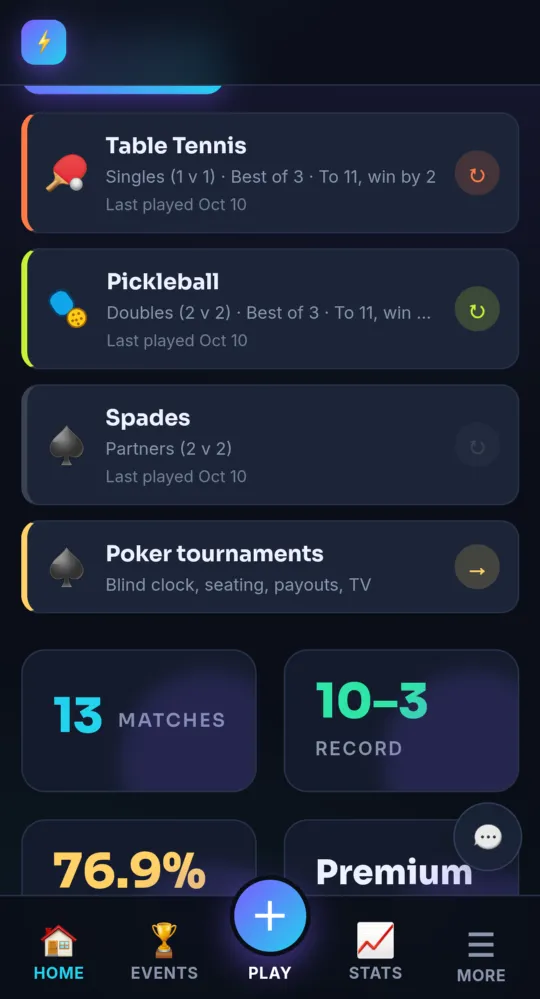
On a phone
- 🔊 Audio reads the score out loud after each point. Pick the language with the flag in the top bar.
- 🎤 Voice appears in browsers that support it. Say “left”, “right”, “undo” or “fault”.
- On a computer, ← and → score a point for each side and Backspace is undo. Bluetooth clickers and pedals that act like a keyboard work the same way.
- Team logos for the broadcast overlay are on the players step; see Broadcast overlays.
Something not working like this?
Tell us what happened, or what is missing. We read every message.