Schedule games
A scheduled game works like any other match. On the day, you open it and score as usual. Free accounts can schedule up to 14 days ahead; Pro and Premium can pick any date and set up weekly games.
Plans: Free Pro and up What each plan includes
-
Start a match for later Free
On your dashboard, tap 📅 Schedule a match. Or start a new match the usual way: pick the sport and rules, then go to the players step.
-
Choose Schedule for later Free
Add the players. Under When, tap 📅 Schedule for later. Pick the Date, Start time, Time zone and About how long it will last.
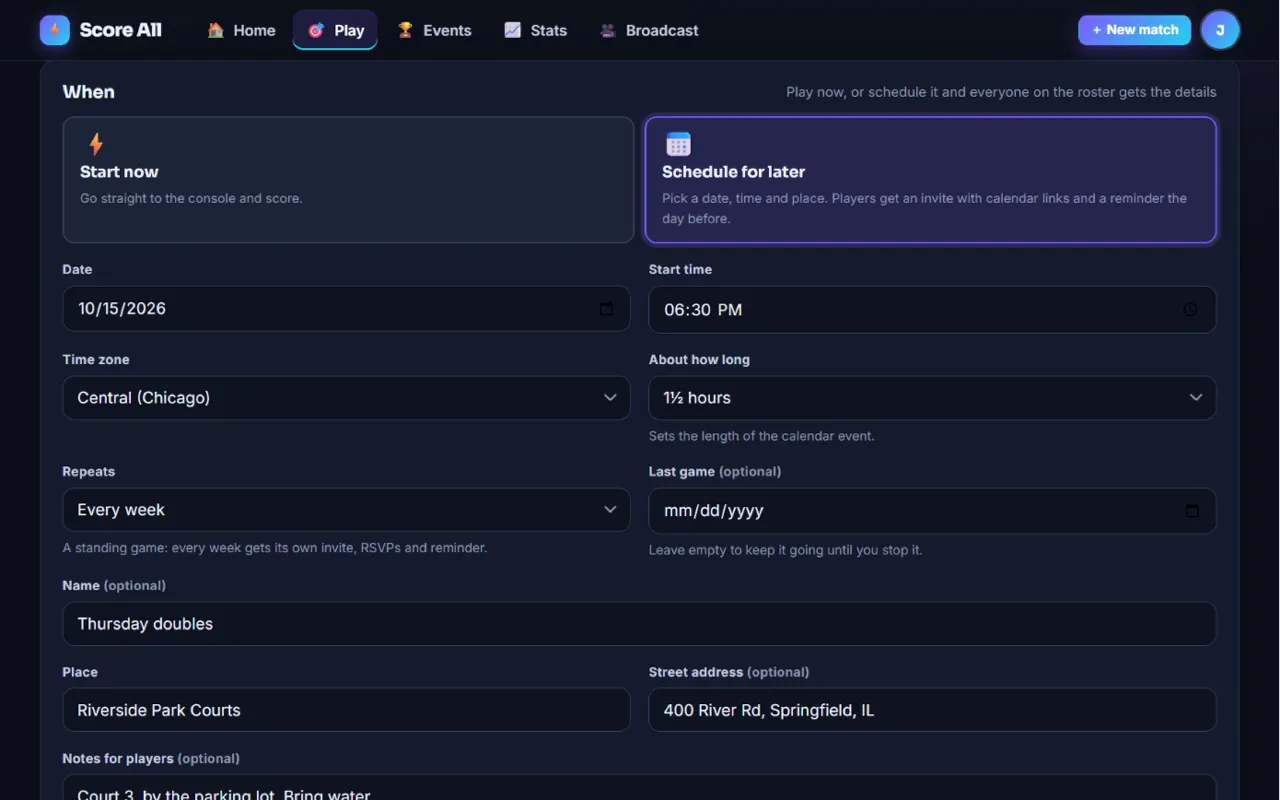
The When card with Schedule for later picked 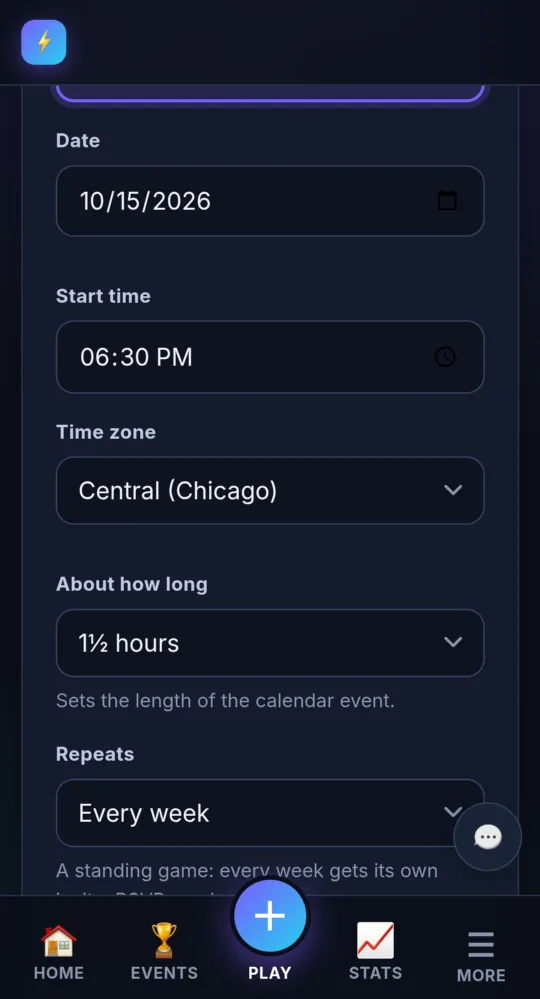
On a phone -
Pick any date Pro and up
On Free, the date can be up to 14 days ahead. Pro and Premium can pick any date.
-
Add the place and notes Free
Fill in Place and, if you like, a Street address, a Name and Notes for players. The street address and notes show only to you and the players on the match. The public scoreboard shows just the time and the place name.
-
Make it a weekly game Pro and up
Set Repeats to Every week or Every 2 weeks. Add a Last game date, or leave it empty to keep going until you stop it. Each game gets its own invite about a week before, its own RSVPs and its own reminder.
-
Send the invites Free
Tap Schedule match → (or Schedule the series →). Everyone on the roster with an email or an account gets an invite with Going, Maybe and Can’t make it buttons, calendar buttons, and a reminder the day before.
-
Share the invite link Free
Some players have no email? On the match page you land on, copy the Invite link and send it by text. Anyone with that link sees the address and can answer for their name. Find the page again on your dashboard under 📅 Upcoming.
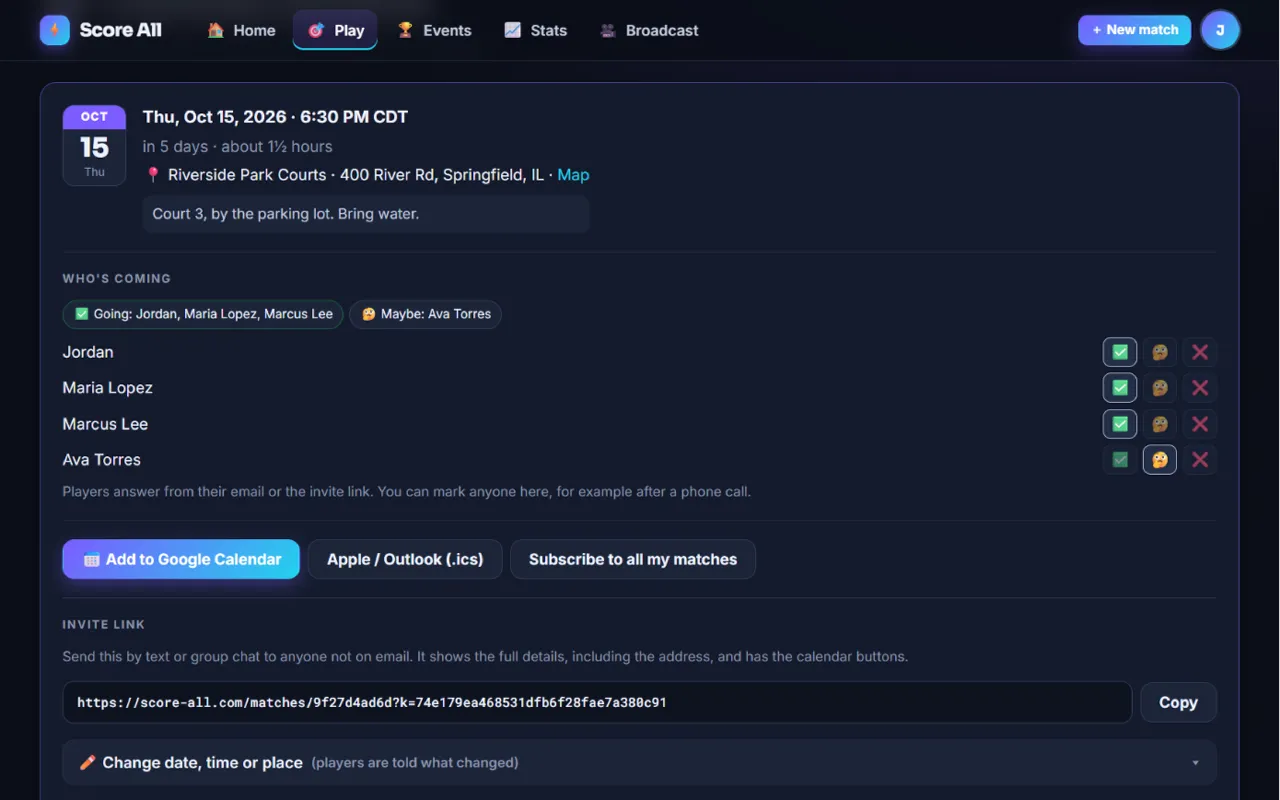
A scheduled match with Who’s coming, calendar buttons and the invite link 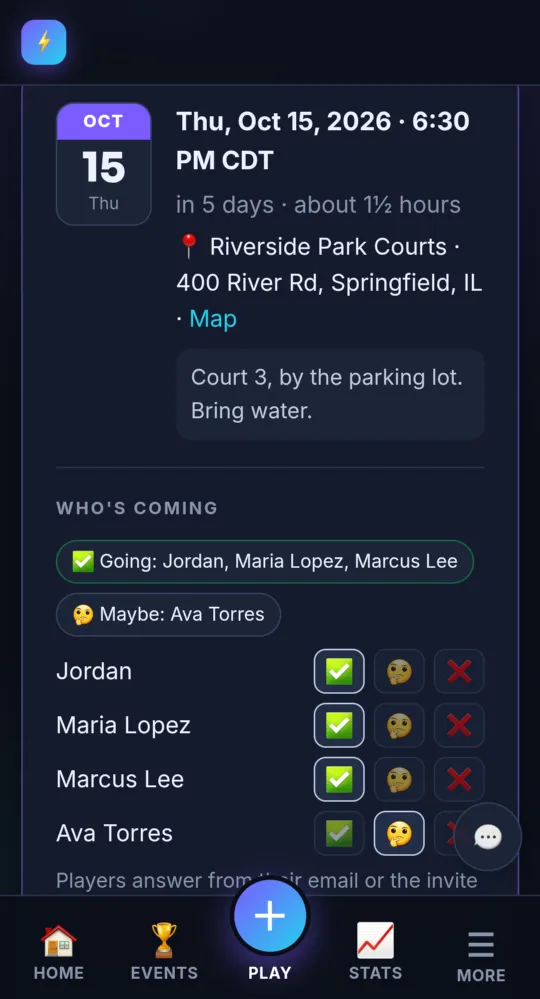
On a phone -
See who is coming Free
Who’s coming shows each answer. You can mark anyone yourself with ✅ 🤔 ❌, for example after a phone call. You get a notification when someone answers, and an email when someone can’t make it.
-
Change or cancel Free
Open ✏️ Change date, time or place, make your change and tap Save and tell the players. A new date or time asks everyone to RSVP again. Cancel this match tells everyone and takes it off their calendars.
-
Skip a week or stop a series Pro and up
To skip one week, cancel that week’s game; the series carries on. To end the series, tap 🔁 Stop repeating after this game.
-
Add it to your calendar Free
Each scheduled match has 📅 Add to Google Calendar and Apple / Outlook (.ics) buttons.
-
Subscribe to all your games Free
In Settings, find 📅 Your Score All calendar. Tap Add to Google Calendar, or Apple Calendar or Outlook, once. Every match and tournament you host or play in then shows up by itself. Reset the address stops an old link from working.
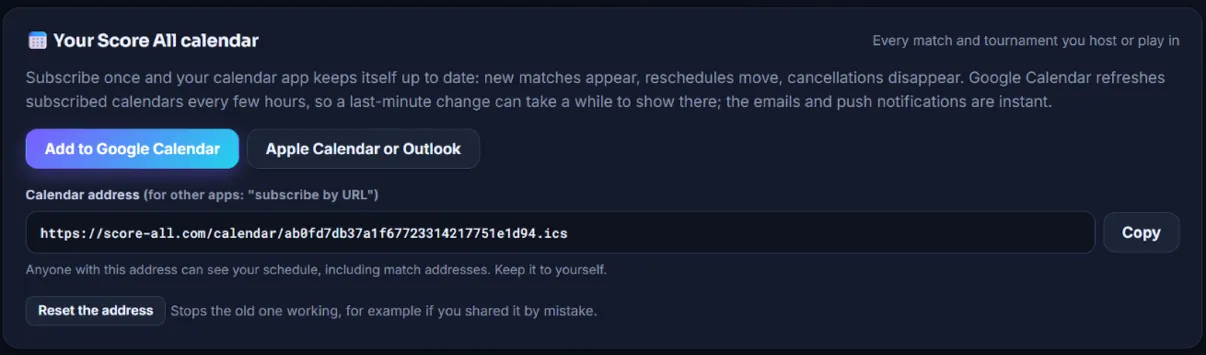
Your Score All calendar in Settings 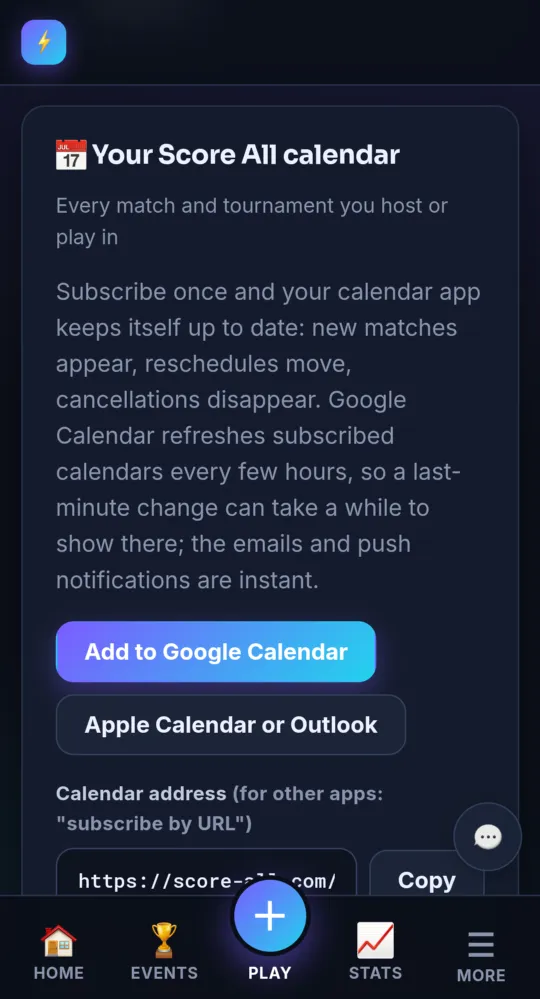
On a phone
- Google refreshes subscribed calendars every few hours. The emails and notifications are the fastest way to hear about a last-minute change.
Something not working like this?
Tell us what happened, or what is missing. We read every message.