Notifications and the phone app
Score All works in any web browser. On a phone it is nicer as an app: it opens full screen and can send notifications. Both are free.
Plans: Free What each plan includes
-
Turn on notifications Free
On your dashboard or in Settings, tap 🔔 Turn on notifications and allow them when your browser asks. In Settings, Send me a test checks that they arrive.
-
What you hear about Free
Invites to matches and tournaments, reminders, RSVP answers for games you host, “You’re up” calls in tournaments, saved games coming back, and results.
-
Android: download the app Free
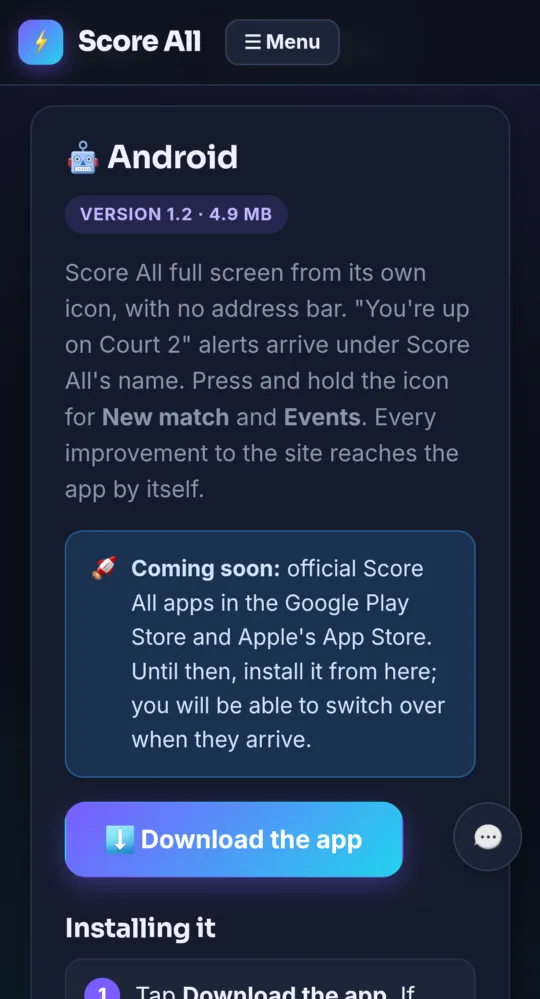
Open score-all.com/app on your phone and sign in. Tap ⬇️ Download the app, then Download anyway and Open. If asked, allow Chrome to install apps, then tap Install.
On a phone -
Android: if Play Protect stops it Free
Google Play Protect may say “App blocked to protect your device”. Tap More details, then Install anyway. Do not tap Got it; that cancels. It may ask again when the app updates.
-
Android: allow notifications Free
Open the app and tap Turn on notifications, then Allow.
-
iPhone: add Score All to your Home Screen Free
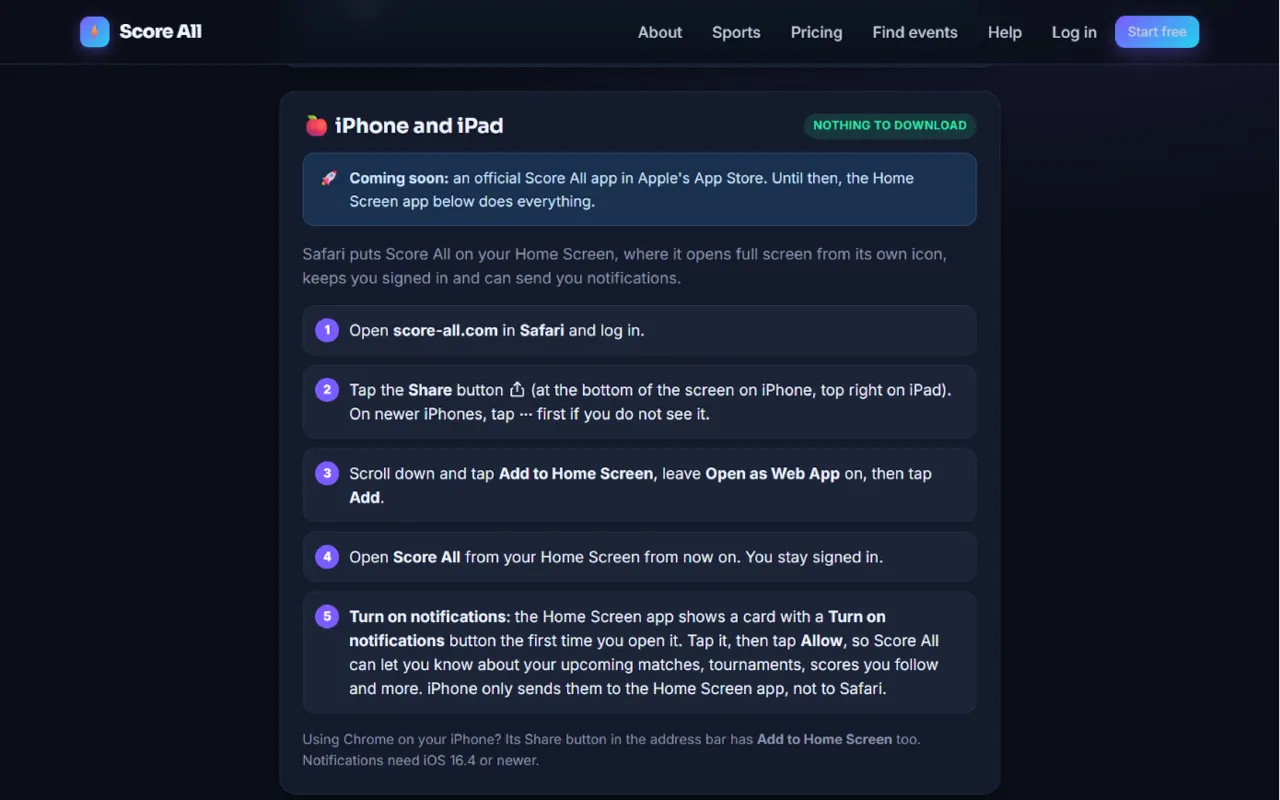
Open score-all.com in Safari and log in. Tap Share (on newer iPhones, tap ⋯ first), then Add to Home Screen. Leave Open as Web App on and tap Add.
Add to Home Screen steps for iPhone 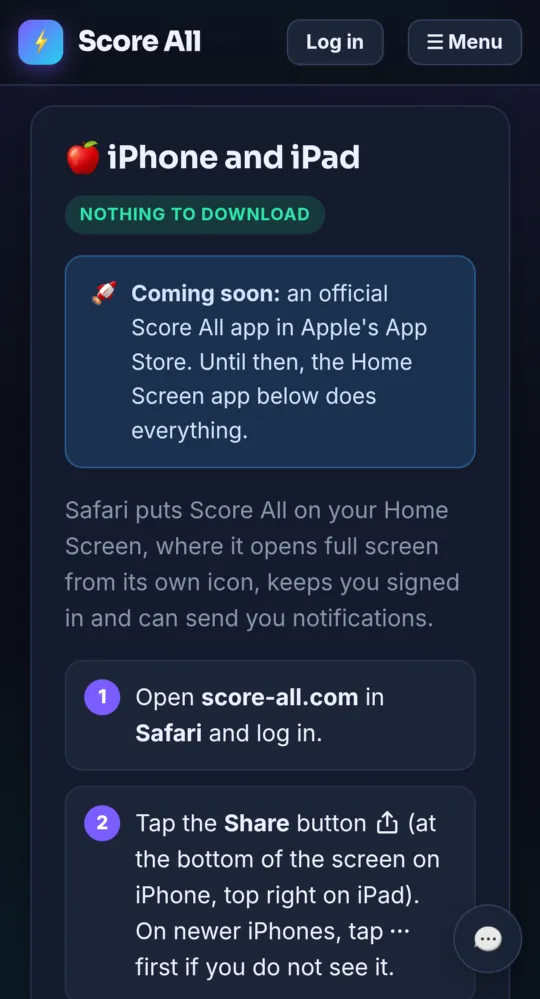
On a phone -
iPhone: allow notifications Free
Open Score All from its Home Screen icon, turn on notifications, and tap Allow. iPhone sends them only to the Home Screen app, not to Safari. It needs iOS 16.4 or later.
-
Turned them off by mistake? Free
Android: Settings → Apps → Score All → Notifications. iPhone: Settings → Notifications → Score All → Allow Notifications.
- Official apps in the Google Play Store and Apple’s App Store are coming later. Until then, the app from score-all.com/app does everything.
- The Android app needs Android 8 or later with Chrome.
Something not working like this?
Tell us what happened, or what is missing. We read every message.